
How to Password Protect Photos on iPhone

Director of Tiny Toes by Aggi Ltd and co-founder of Safe Frame
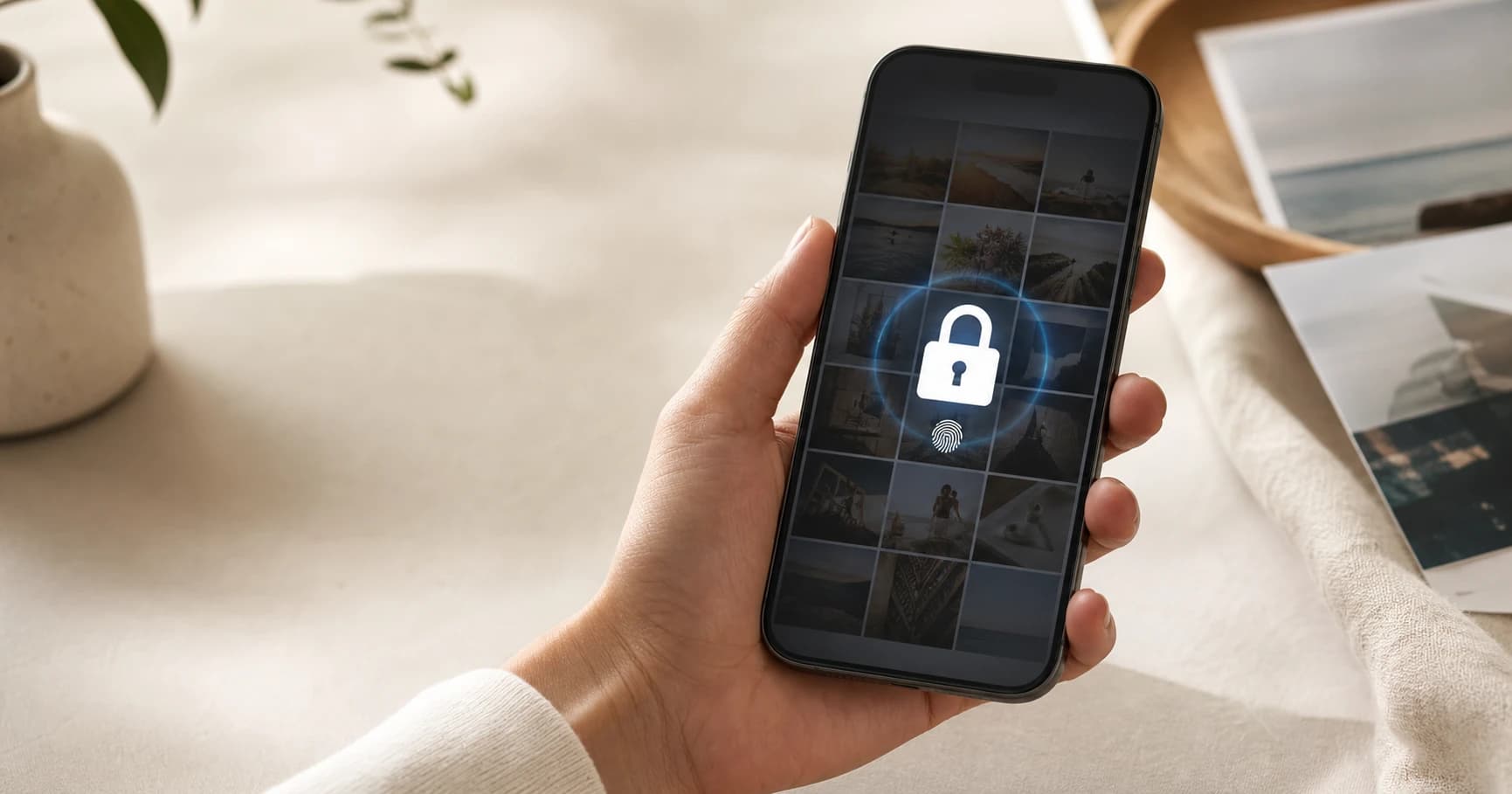
Your iPhone includes built-in privacy features for sensitive pictures, but they do not work like a traditional password-protected folder. If you’re trying to figure out how to password protect photos on iPhone, the key point is simple: Apple does not let you assign a separate password to individual photos or to custom albums inside the Photos app.
You still have solid options. The easiest is to move photos into the built-in Hidden album, which can be locked with Face ID, Touch ID, or your iPhone passcode on iOS 16 and later. If you want something separate from your device passcode, the most practical built-in workaround is to store those images in a locked note in the Notes app.
Quick Answer: the best ways to password protect photos on iPhone
For most people, the quickest way to protect private photos is the Hidden album in the Photos app. On iPhones running iOS 16 or later, the Hidden album is automatically locked when the Photos privacy setting is enabled. Opening it requires Face ID, Touch ID, or the device passcode.
That said, this is not the same as giving your photos their own password. If someone knows your iPhone passcode, they may also be able to unlock the Hidden album. That matters if you share your passcode with a child, partner, friend, or caregiver.
Here’s the practical breakdown:
| Goal | Best method | What protects it |
|---|---|---|
| Quickly hide and lock photos in the Photos app | Hidden album | Face ID, Touch ID, or iPhone passcode |
| Use a different password from your iPhone passcode | Locked note in Notes | Custom Notes password, Face ID, or Touch ID |
| Lock a custom Photos album | Not available natively | Use Hidden album, Notes, or a third-party vault app |
| Restrict access to the whole Photos app | iOS 18 app lock, or Screen Time on older versions | Face ID, Touch ID, iPhone passcode, or Screen Time passcode |
If convenience is your priority, use the Hidden album. If you need a separate password, Notes is the better fit. If you want more advanced controls, such as encrypted folders or decoy vaults, a reputable third-party photo vault app from the App Store may be worth considering.
Why you can’t set a separate password for individual iPhone photos or custom albums
A common question is how to lock a photo album on iPhone, especially a custom album named something like “Private,” “Documents,” or “Receipts.” The limitation is straightforward: the Photos app does not let you add a password to albums you create yourself. You can sort images into albums, but anyone who can open Photos can still open those albums.
Apple’s built-in protection applies only to certain system albums, most notably Hidden and Recently Deleted. In iOS 16 and later, those areas can require device authentication—Face ID, Touch ID, or your iPhone passcode. They do not support a separate album-specific password.
That difference matters. Hiding a photo removes it from the main Library view, Memories, and some widgets, but it does not create a private custom folder with its own password. It simply moves the photo into Apple’s Hidden album.
If you’re using iOS 15 or earlier, the limitation is more significant. The Hidden album is not truly locked on those versions. You can hide pictures from the main library, but the album may still be visible from the Albums tab unless you hide the album itself in Settings. If your device supports it, iOS 16 or later offers meaningfully better privacy.
How to lock photos on iPhone using the Hidden album with Face ID, Touch ID, or passcode
The Hidden album is the simplest built-in option for locking private photos on an iPhone. Before you move anything, check that the privacy setting is enabled.
Open Settings, scroll down, and tap Photos. Turn on Use Face ID or Use Touch ID, depending on your device. If biometrics are not enabled, Photos will fall back to your device passcode. Also make sure Show Hidden Album is turned on if you want the album to appear in the Photos app.
Then open the Photos app and select the photo or video you want to protect. Tap the More button, shown as three dots, or use the Share button depending on your iOS version. Choose Hide, then confirm with Hide Photo or Hide Photos.
To view those items later, open Photos, go to the Albums tab, and scroll to Utilities. Tap Hidden. Your iPhone will prompt for Face ID, Touch ID, or your passcode before displaying the contents.
For everyday privacy, this method works well. It is useful for gift ideas, personal screenshots, medical images, financial documents, or anything else you do not want popping up while you are casually scrolling through your camera roll.
The main limitation is still the same: the Hidden album relies on your iPhone’s primary unlock method. If someone knows your device passcode, they may be able to access it.
How to protect photos with a different password by putting them in a locked Note
If you want a password that is separate from your iPhone lock screen passcode, the Notes app is the strongest built-in workaround. Locked notes can use a custom password, with Face ID or Touch ID available for convenience if you choose.
Start by opening the Notes app and creating a new note. Tap the Camera icon, then choose Choose Photo or Video. Select the photos or videos you want to protect and tap Add. The images will be inserted into the note.
Next, tap the More button, shown as three dots, and choose Lock. If you have not used locked notes before, your iPhone may ask whether you want to use your iPhone passcode or create a separate password. If your goal is to keep the photos protected even from someone who knows your device passcode, choose the separate password option.
Once the note is locked, tap the lock icon to close it. When you open it again, Notes will require the password, Face ID, or Touch ID, depending on how you configured it.
One final step is easy to miss but important: delete the original photos from the Photos app. If the originals stay in your photo library, they are still accessible there. After deleting them, go to Recently Deleted in Photos and remove them from that album as well. Otherwise, they may remain recoverable for a limited time.
This approach is better suited to highly sensitive items, such as copies of IDs, private personal images, or legal documents. The tradeoff is usability. Notes is not nearly as convenient as Photos for browsing, sorting, editing, or managing a large number of images.
What to know before you choose a photo protection method: iCloud, Recently Deleted, and iOS limits
Before moving private photos around, it helps to understand how syncing and storage affect privacy on an iPhone.
First, hiding a photo does not remove it from iCloud. If iCloud Photos is enabled, the hidden image can still sync across your Apple devices that use the same Apple ID. On compatible devices, it should remain in the Hidden album and still require authentication to view. That can be useful, but it also means you should review privacy settings on every device tied to your account.
Second, Recently Deleted is also protected on newer iOS versions. When you delete a photo, it usually moves there before permanent removal. On iOS 16 and later, that album is locked with Face ID, Touch ID, or passcode. Even so, if you are moving a photo into a locked note and want it gone from Photos, you should still remove it from Recently Deleted manually.
Third, Shared Photo Library can complicate things. If you use iCloud Shared Photo Library, photos placed in the shared library are intended to be visible to participants. Hidden photos are not shown to shared library participants through your personal Hidden album, but you should still verify whether a sensitive image is in your personal library or the shared library before assuming it is private.
Fourth, app-level locking depends on your iOS version. On iOS 18 or later, you can lock the Photos app itself by touching and holding the Photos app icon, tapping Require Face ID or Require Touch ID, and confirming. This restricts opening the app with Face ID, Touch ID, or your device passcode. It is useful if you want to stop someone from casually opening Photos while borrowing your phone, but it still does not create a separate Photos-only password.
On older iOS versions, a common workaround is Screen Time: go to Settings > Screen Time > App Limits, add a short limit for Photos, and protect Screen Time with its own passcode. It is not the same as a true app lock, but it can add a layer of friction if someone is borrowing your phone.
For many users, the best setup is fairly simple: use the Hidden album for everyday private photos, use locked Notes for anything that needs a separate password, and consider locking the Photos app itself if your iPhone supports it.
Common questions about locking photos on iPhone, hidden albums, and app-level privacy
Can you lock a specific photo album on iPhone?
No. You cannot assign a password to a custom album you created in the Photos app. Only Apple’s built-in Hidden and Recently Deleted albums can be locked natively, and they rely on Face ID, Touch ID, or your iPhone passcode.
Can I password protect individual photos in the Photos app?
Not with a unique password. You can hide individual photos, which moves them into the locked Hidden album on iOS 16 and later. If you want a separate password, put the photos in a locked note and delete the originals from Photos.
How do I lock photos with a password instead of Face ID?
For the Hidden album, you can turn off Face ID for Photos under Settings > Photos if you want your iPhone to rely on the device passcode instead. If you want a completely different password, use the Notes app and choose a custom Notes password.
Can I lock the entire Photos app on iPhone?
Yes, on iOS 18 or later, you can lock the Photos app with Face ID, Touch ID, or your device passcode. Touch and hold the Photos app icon, then choose Require Face ID or Require Touch ID. On older iOS versions, Screen Time can be used as a workaround.
Does hiding a photo delete it from iCloud?
No. Hiding a photo does not delete it. If iCloud Photos is enabled, it may still sync across your Apple devices while remaining in the Hidden album. If you want it removed everywhere, you need to delete it and then clear it from Recently Deleted.
Can I hide the Hidden album itself?
Yes. Go to Settings > Photos and turn off Show Hidden Album. That removes the Hidden album from the Albums tab, but it does not delete the photos inside it. You can turn the setting back on whenever you need access.
Are third-party photo vault apps safe?
Some can be useful, but caution is warranted. Look for reputable apps with clear privacy policies, a solid update history, and transparent information about encryption and cloud backup. Avoid putting highly sensitive photos into an app you do not trust.
What is the best method overall?
For most iPhone users, the Hidden album is the best all-around option because it is fast, built in, and integrated with Photos. If you need a separate password, use locked Notes. If you want to restrict access to the whole Photos app, use the native app lock on iOS 18 or later.

Agata
Director of Tiny Toes by Aggi Ltd and co-founder of Safe Frame
Agata is the owner of a London-based photography studio with more than 10 years of experience in family and baby portraits. She has rebuilt her client workflow around faster selections, fewer screenshots, and a proofing experience that treats galleries as a sales step, not a dropbox.
View author page →Reviewed: April 13, 2026
Editorial policy
Related in this topic cluster
Safe Frame Blog
Actionable guides for photographers who want to protect images, speed up proofing, and increase print sales.
Build secure client galleries with SafeFramePro
Protect previews, speed up proofing, and increase print sales with one workflow.