
Clients can now order their photographs directly in MySafeFrame

Director of Newborn Story Photography Ltd and co-founder of Safe Frame
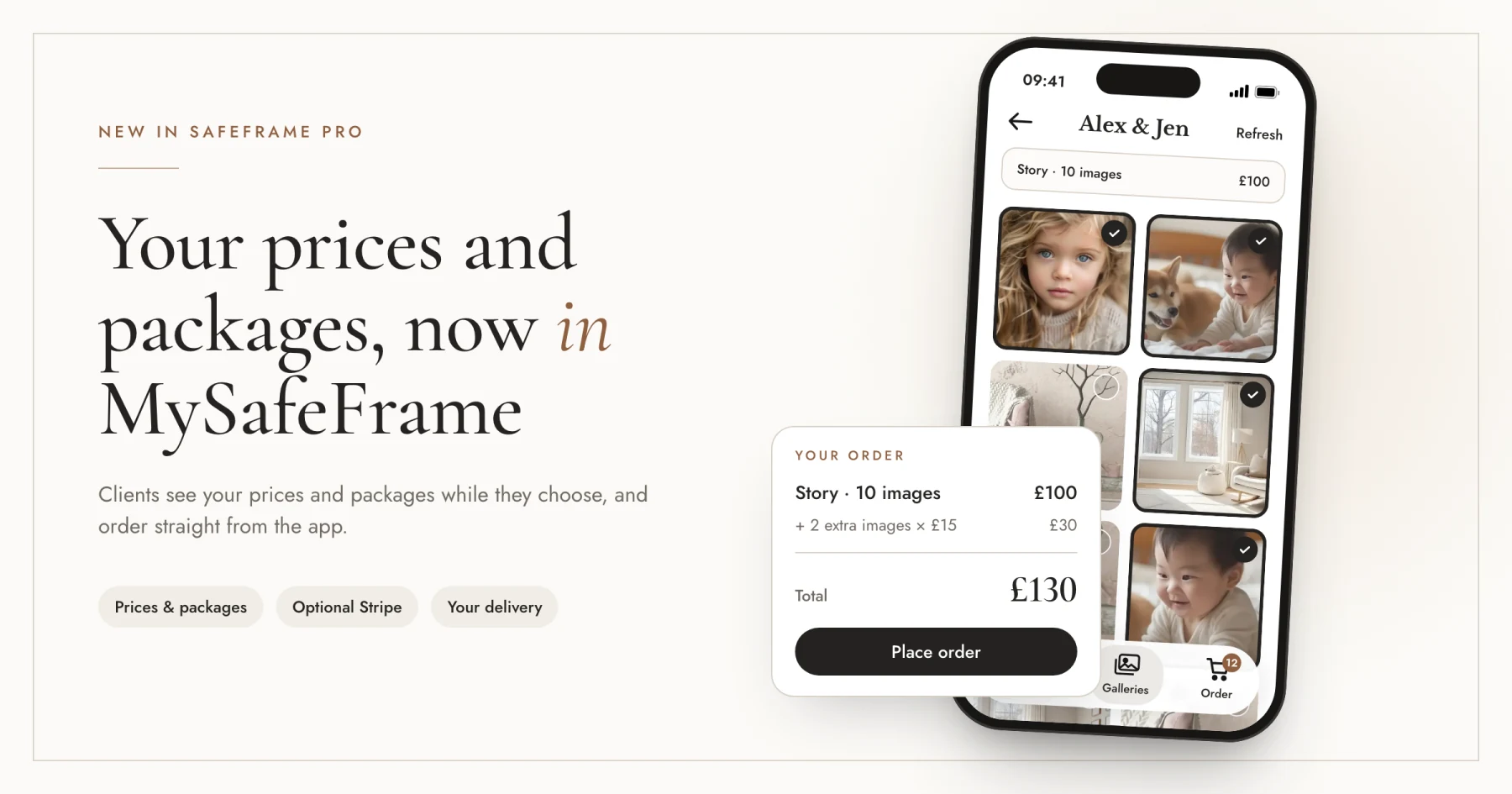
Your client opens their gallery, finds the photographs they love and decides which ones they want to keep. With SafeFrame Pro's new ordering tools, they can now see your prices, choose their package or individual images, and place their order directly in MySafeFrame.
It is an important addition to the way photographers use SafeFrame Pro: the gallery can now bring together viewing, pricing and ordering in the client app.
Alongside this, you can connect Stripe for online payments and choose how payment links, client emails and delivery are handled. You can also continue taking payments through your existing system.
Put your prices alongside the photographs
The new pricing options let you show individual-image prices, packages or both in MySafeFrame. You can include an All photos package and set a per-image price for extras added to a package.
This means clients can see their purchasing options while choosing their photographs and place their order from the app.
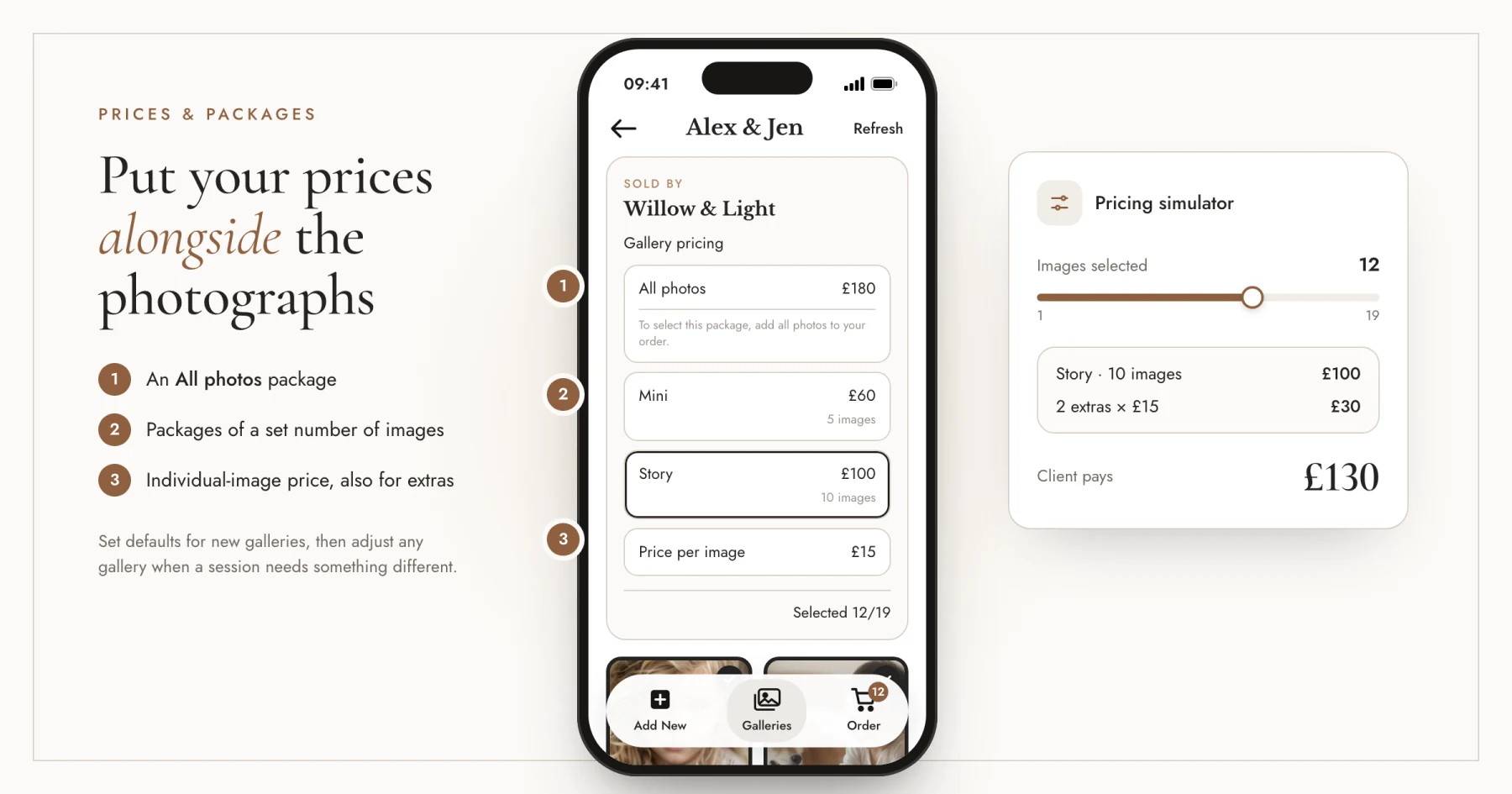
You remain in control of your offer. Set defaults for newly created galleries, then adjust individual galleries when a session or client needs something different. A pricing simulator helps you check how the calculation changes with the number of images selected.
Requested by photographers, developed by photographers
Photographers have been asking us for an ordering system inside SafeFrame Pro. As photographers ourselves, we understood why this mattered and wanted to make it available in time for the busy Christmas period.
For us, Nina and Agata, the timing was important. We wanted studios to be able to use the new system for their Christmas galleries, while building something that would remain useful for their image orders throughout the year.
SafeFrame Pro was built to help photographers protect their images while clients decide what to buy. Bringing pricing and ordering into MySafeFrame makes the next step part of that same process.
The client can move from looking at their photographs to choosing what to purchase and submitting an order. The photographer can present the options they want to offer in the gallery itself.
For a newborn gallery, that might be a choice of image packages and a whole-gallery option. For Christmas minis, it might be a smaller package with the option to add more photographs. The tools support the photographer's offer throughout the year.
Connect payments if it suits your studio
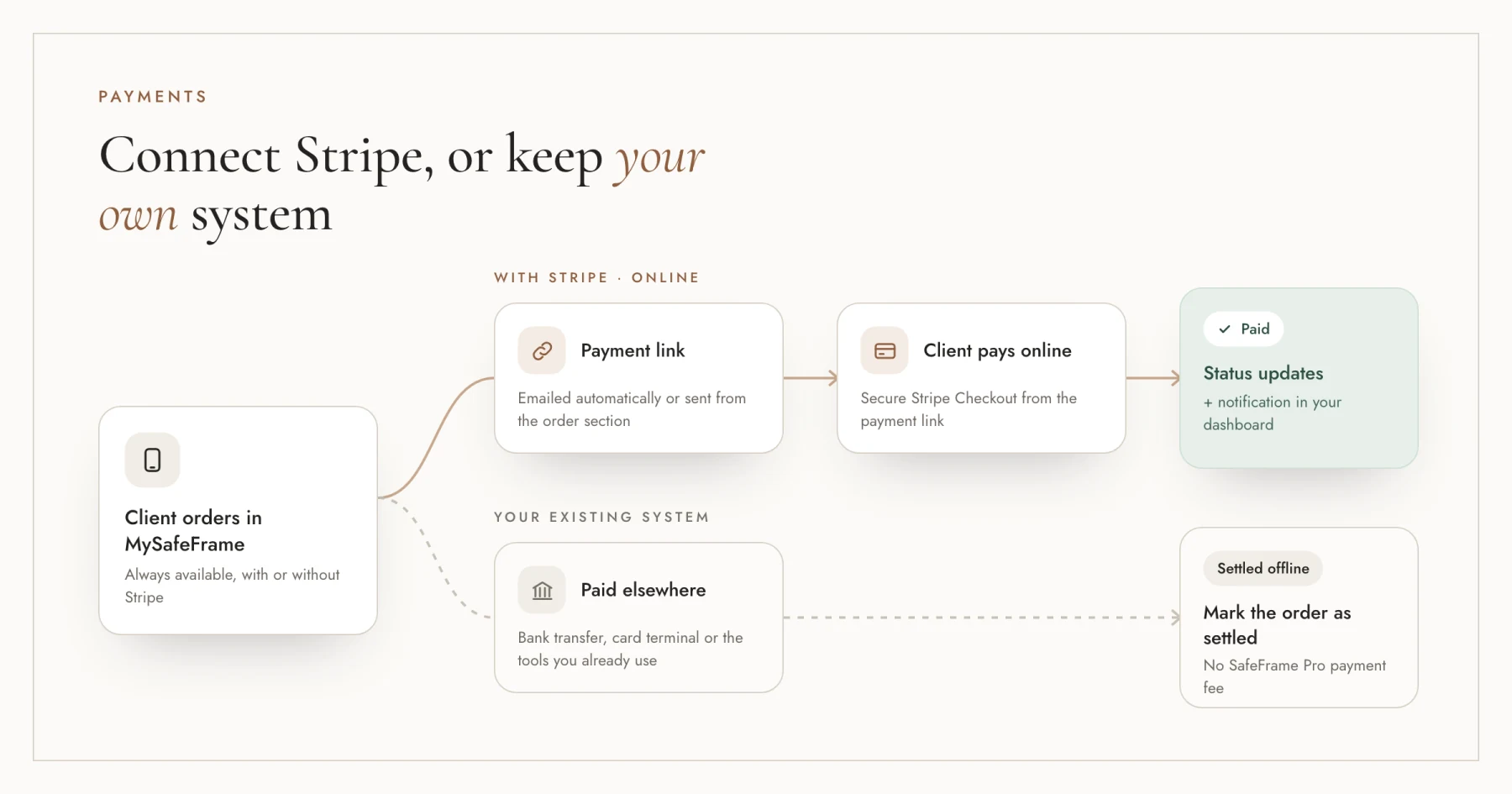
Stripe is an optional addition to in-app ordering. Connect it if you want clients to pay for their image orders online through SafeFrame Pro's payment process.
You can have a payment link emailed automatically after an order, or send it manually from the order section. Once the client pays, the order status updates and you receive a notification in your dashboard.
If you already have a payment method that works for your studio, you can keep using it. Clients can still order in MySafeFrame. After receiving payment elsewhere, mark the order as settled offline.
Keep control of delivery
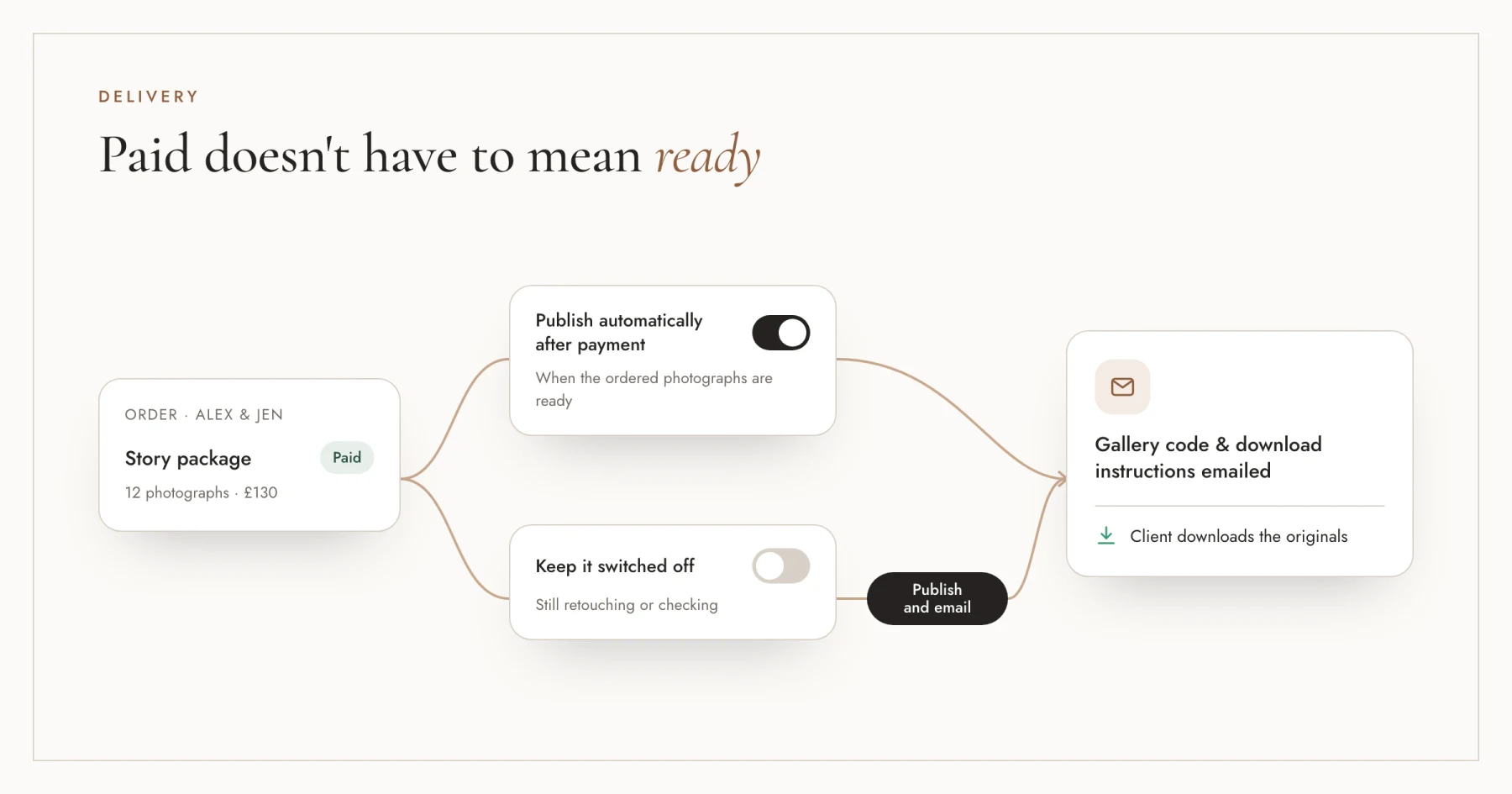
An order being paid does not always mean the photographs are ready to download. Some photographers finish their retouching after a client chooses their images.
That is why automatic publication is optional. With Stripe payments, you can enable publication after payment when the ordered photographs are ready. SafeFrame Pro then emails the gallery code and download instructions.
If there is still editing or checking to do, keep automatic publication switched off and use Publish and email when the photographs are ready.
Account for an advance already paid
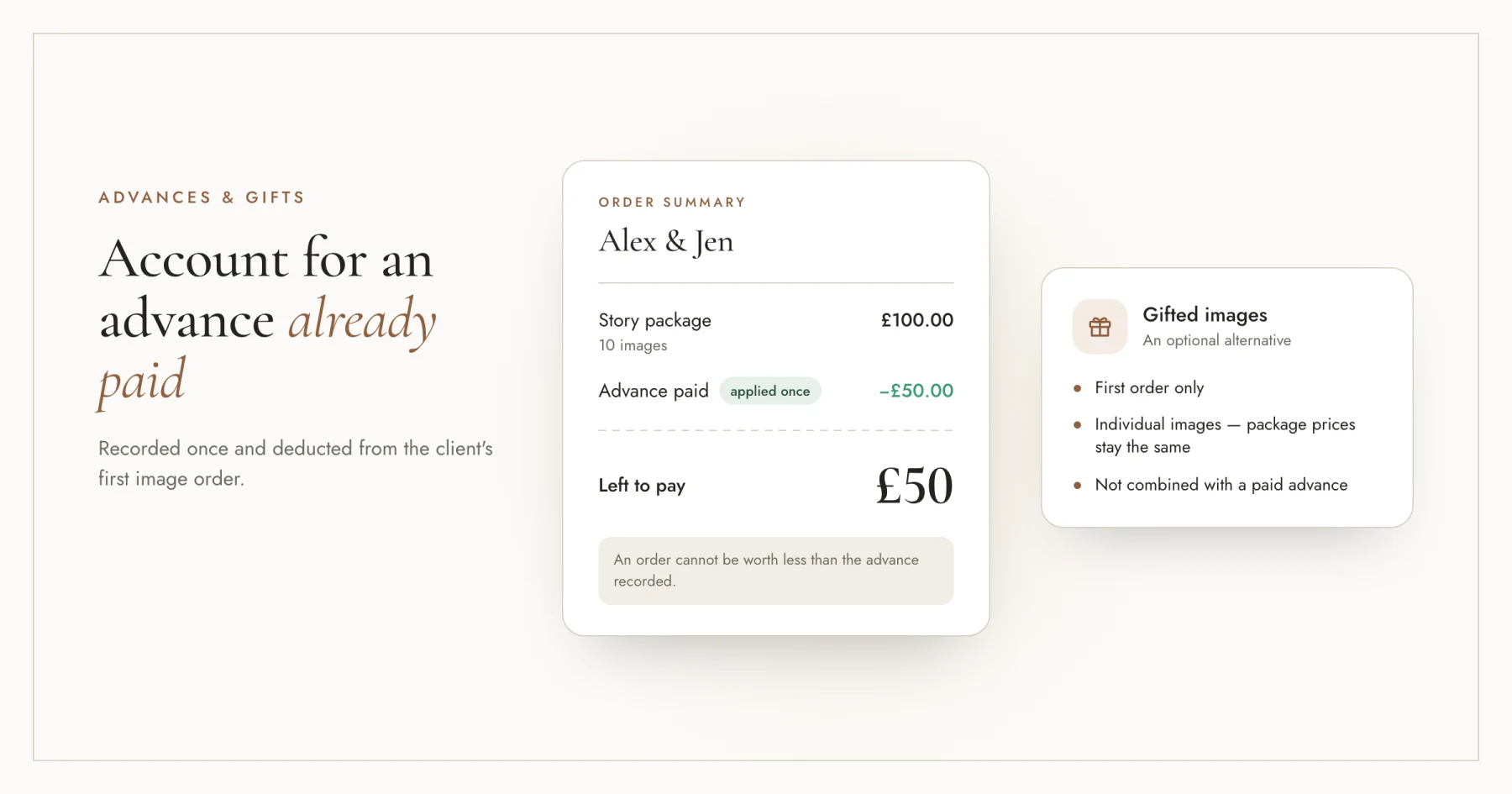
You can record money already paid so it is deducted from the first image order. For example, a £50 advance against a £100 package leaves £50 to pay. The advance applies once, and an order cannot be worth less than the advance recorded.
There is also an option to offer gifted individual images. These apply to the first order only, do not reduce package prices and cannot be combined with a paid advance.
Make the emails recognisable
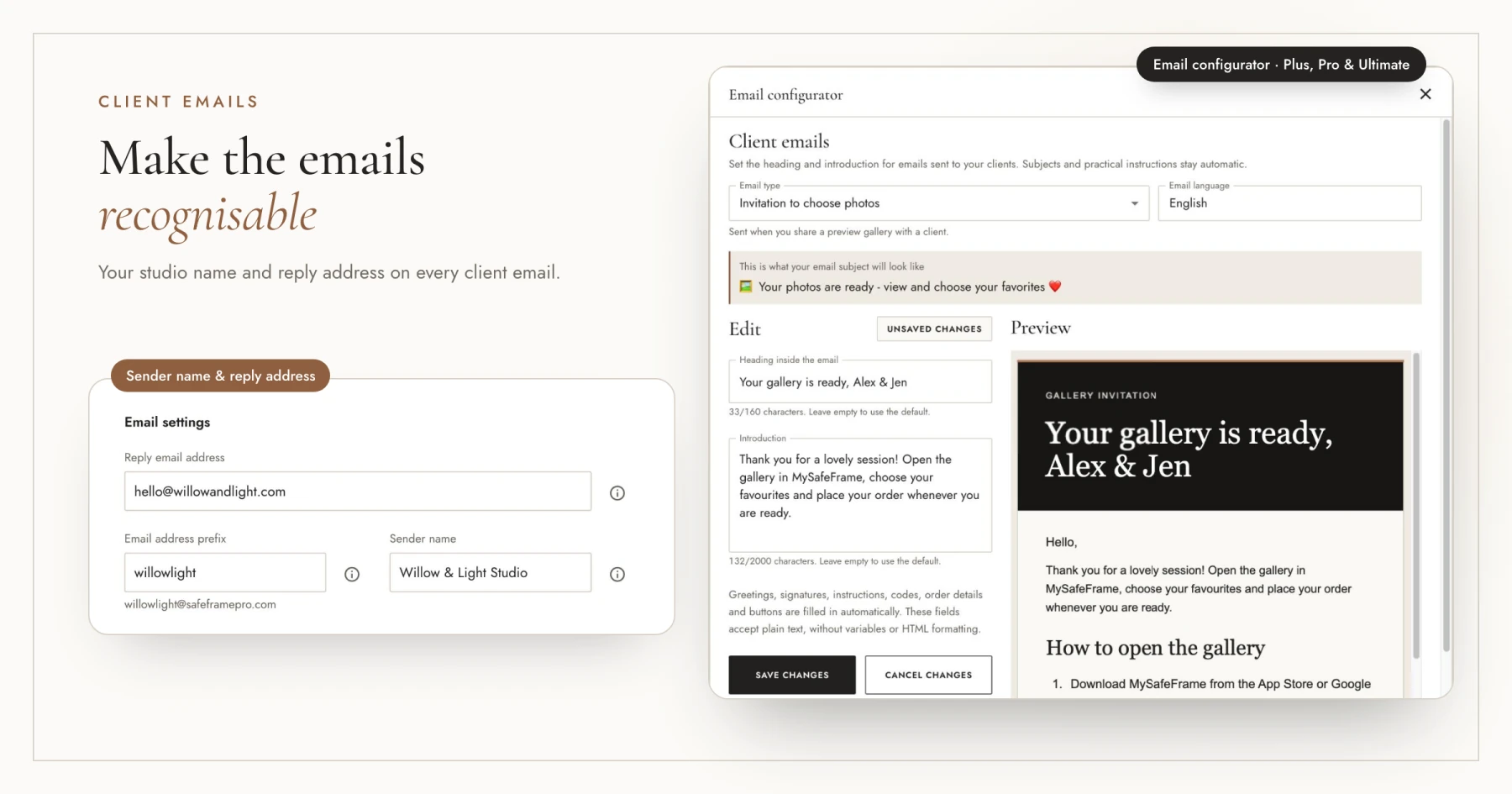
Set your sender name and reply address so clients recognise messages from your studio and can reply to you. The sending address uses the safeframepro.com domain.
On Plus, Pro and Ultimate, you can also edit the heading and introduction of client emails using the Email configurator. The messages cover the invitation to choose photographs, order confirmation, online payment and final delivery.
Understand online payment fees
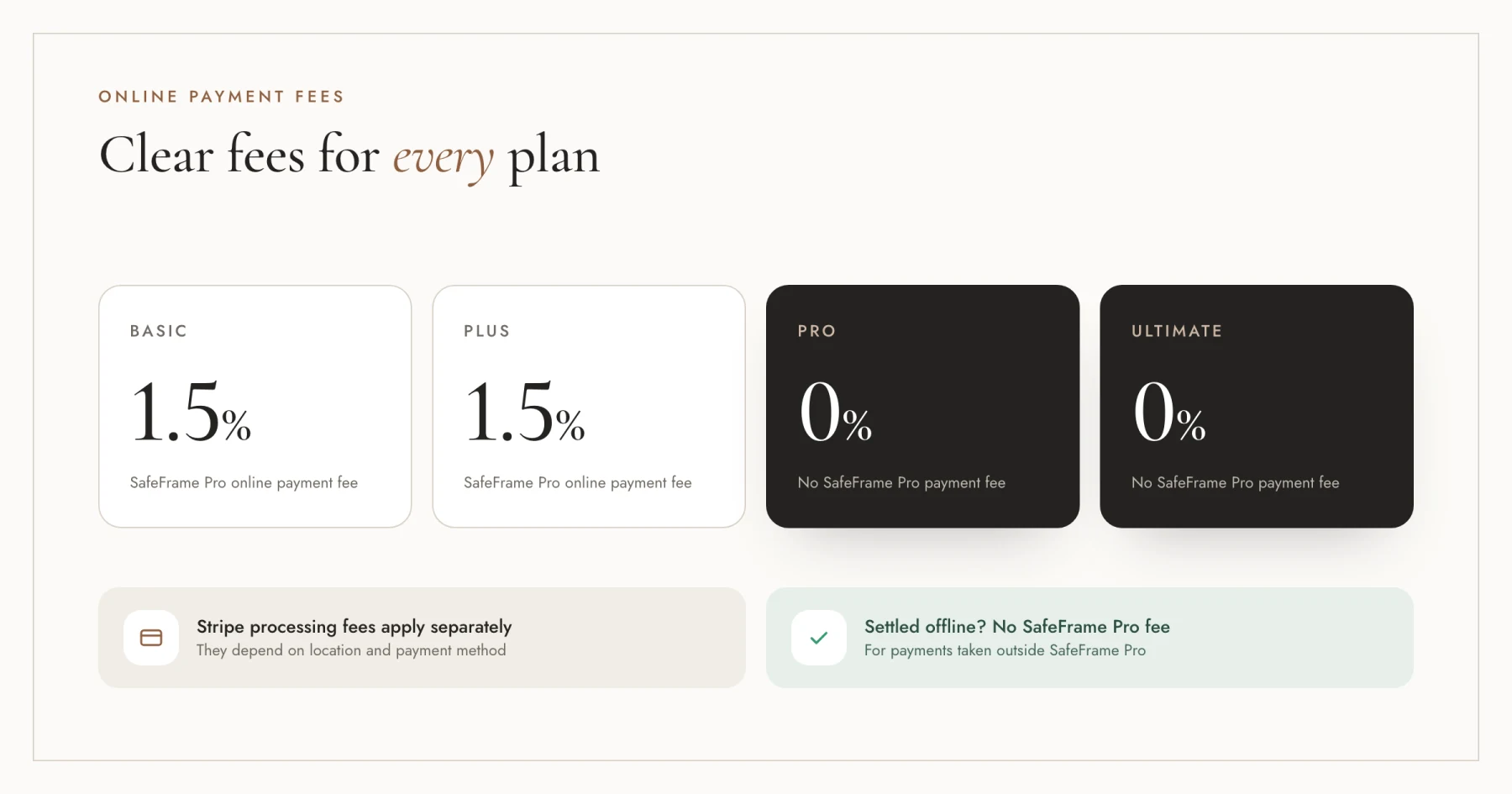
SafeFrame Pro charges a 1.5% online payment fee on Basic and Plus. There is no SafeFrame Pro online payment fee on Pro and Ultimate. Stripe's own processing fees apply separately and depend on location and payment method.
Payments settled outside SafeFrame Pro have no SafeFrame Pro payment fee. Review the seller terms and Stripe's pricing information before choosing your setup.
Get started with in-app ordering
Begin by setting up the prices and packages your clients will see. Then choose your payment method and decide which emails and delivery steps you want to automate.
Video tutorials

Nina
Director of Newborn Story Photography Ltd and co-founder of Safe Frame
Nina is a professional newborn and family photographer based in North East England with over 14 years behind the camera. Her experience ranges from forensic imaging labs to running a family-focused portrait studio, which shapes how she approaches safe delivery, sensitive client data, and honest sales conversations.
View author page →Sources
Reviewed: October 21, 2026
Editorial policy
Related in this topic cluster
Safe Frame Blog
Actionable guides for photographers who want to protect images, speed up proofing, and increase print sales.
Build secure client galleries with SafeFramePro
Protect previews, speed up proofing, and increase print sales with one workflow.