
How to Hide Photos on iPhone: The Hidden Album, Its Lock and iCloud Sync

Director of Tiny Toes by Aggi Ltd and co-founder of Safe Frame
Some pictures need to be on your phone, just not in the grid that anyone sees when you pass it across the table. A screenshot of your ID, say, or a boarding pass, or the receipt for a surprise gift. Figuring out how to hide photos on iPhone takes a few taps, since the Photos app already has a Hidden album that pulls items out of your library without deleting anything. What follows is written for iOS 26 and later, with notes for older versions: hiding, unhiding, hiding the album itself, and what iCloud Photos does on your other devices.
How to hide photos and videos on iPhone
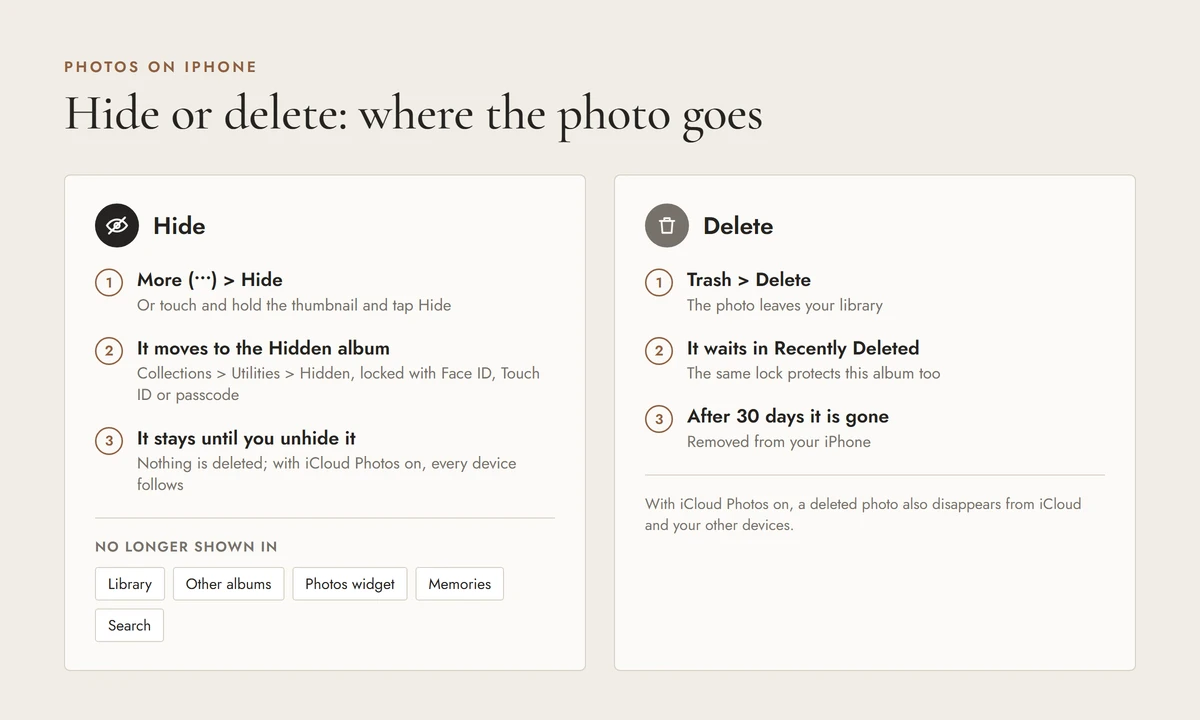
Open Photos and tap the photo or video. Tap the More button (the three dots), then Hide, and confirm. Or skip opening it: touch and hold the thumbnail in the grid and tap Hide from there. Either way, the item goes to the Hidden collection. It stops appearing in your Library, in your other albums and in the Photos widget on your Home Screen.
Videos behave the same way, from the same menu. If you have a pile to deal with, like a dozen screenshots of documents, select them together:
- Go to your Library or any collection and tap Select.
- Tap each photo or video you want to hide.
- Tap the More button, then tap Hide.
- Confirm when Photos asks.
Hiding isn't deleting. Hidden items are still in your library, and you can bring them back whenever you like. Deletion is a different path entirely: those items sit in Recently Deleted for 30 days, then disappear from your iPhone. With iCloud Photos on, they go from iCloud and your other devices as well.
Where is the Hidden album on iPhone
People get stuck here a lot, and it's not their fault. Apple has moved things around in Photos more than once.
On iOS 26 and later, Photos has tabs: Library and Collections, with Search next to them. Collections is split into Pinned, Media Types, Utilities and Albums. Tap Collections, scroll to Utilities, tap Hidden. Then tap View Album and unlock with Face ID, Touch ID or your passcode. On an iPad you may have to open the sidebar first.
If your iPhone is still on iOS 18, the layout is different. That version dropped the tab bar and put everything on one long scrolling page, library on top, collections underneath. Scroll down past the library to Utilities and tap Hidden. On iOS 17 and earlier, the Hidden album sits in the Albums tab under Utilities, and the Photos settings mentioned below are in Settings > Photos rather than Settings > Apps > Photos.
| Where you are | Path to the Hidden album | Default behavior |
|---|---|---|
| iPhone with iOS 26 or later | Photos > Collections > Utilities > Hidden | Visible and locked |
| iPhone with iOS 18 | Scroll down the Photos page to Utilities > Hidden | Visible and locked |
| Mac | View > Show Hidden Photo Album, then Hidden under Utilities | Turned off and locked |
| iCloud.com | Hidden album in the sidebar, then Show Hidden Photos | Contents shown only after Show Hidden Photos |
Can't see it anywhere? In most cases it's been switched off in Settings. More on that below.
How to unhide photos on iPhone
Get into the Hidden album the way your iOS version wants, tap View Album and unlock it. Then tap the photo or video, tap More and choose Unhide. Touching and holding a thumbnail gives you Unhide in the menu too. For several at once, tap Select, pick the items, then More and Unhide. They go straight back to your library.
One thing to keep in mind. With iCloud Photos on, unhiding follows the same rule as hiding and applies to every device signed in to the same Apple Account. Unhide something on your iPhone and it's no longer hidden on your iPad or Mac either.
How to hide the Hidden album and keep it locked
On iPhone and iPad the Hidden album shows up by default. It's locked, sure, but anyone scrolling through your collections can still see that it's there, which in some situations says enough on its own.
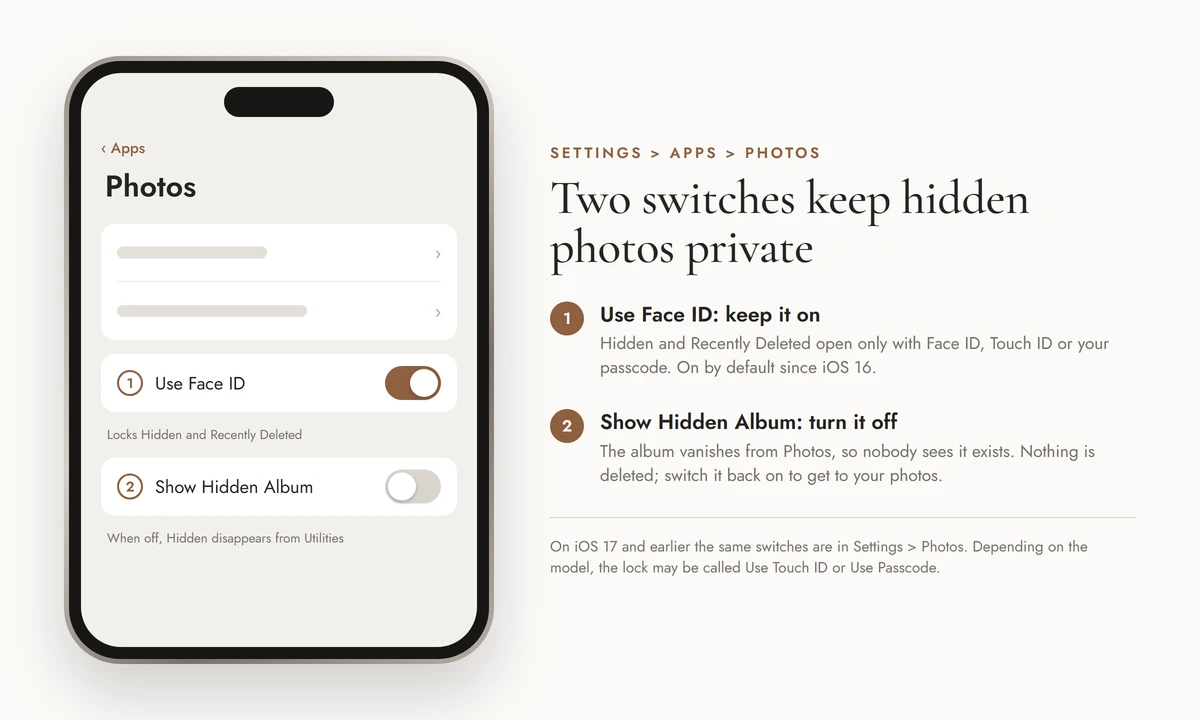
To take it out of Photos completely, go to Settings > Apps > Photos, scroll down and turn off Show Hidden Album. Nothing gets deleted when you turn it off. Flip it back on when you want your hidden items again.
Since iOS 16, Hidden and Recently Deleted have been locked by default, opening only with Face ID, Touch ID or your passcode. You can check that in the same spot, Settings > Apps > Photos. Use Face ID should be on (or Use Touch ID, or Use Passcode, depending on the model). Turn it off and both albums lose their lock at the same time.
Used together, these two settings cover more than either does alone. Hiding the album keeps it out of view. And if someone with your unlocked phone goes into Settings and turns the album back on, the lock is still sitting in front of the contents. Stronger locking, such as requiring Face ID for the whole Photos app, is covered in a separate guide on password-protecting photos on iPhone.
What hiding does not protect: iCloud sync, Shared Library and backups
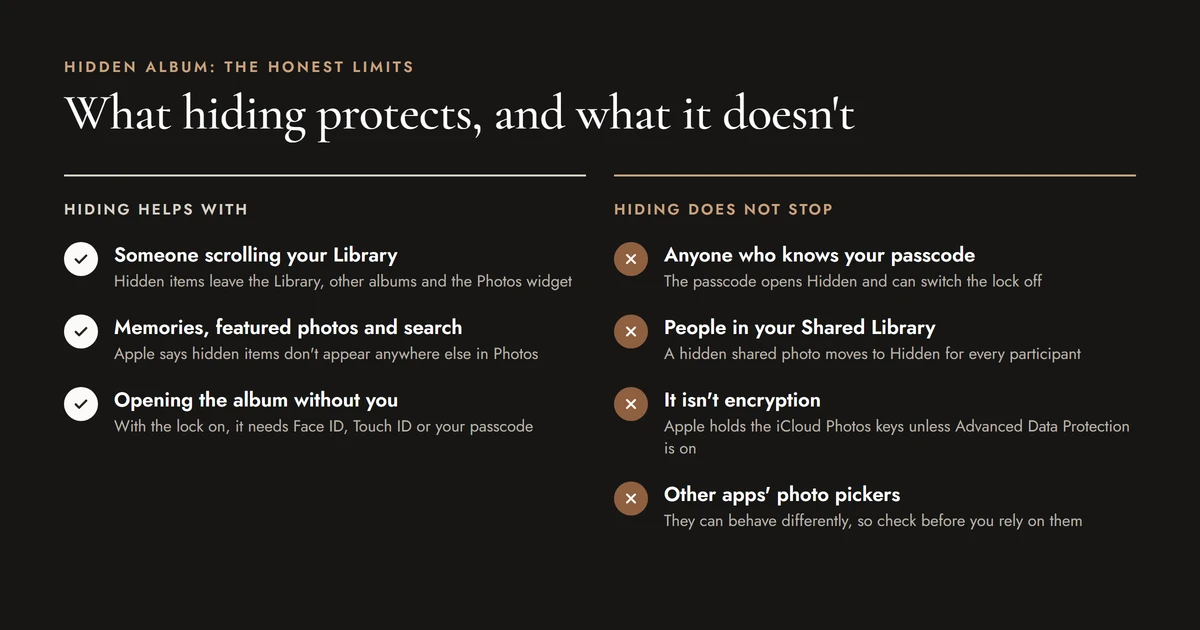
Think of the Hidden album as a view filter with a Face ID, Touch ID or passcode gate in front. It isn't encryption. If someone knows your passcode, they can open it, because the lock falls back to the passcode whenever Face ID or Touch ID doesn't work.
With iCloud Photos on, hiding carries over to all your devices on the same Apple Account. On iCloud.com it's a separate album in the sidebar, and clicking Show Hidden Photos reveals what's inside.
Shared Library is where it gets trickier. Hide a photo that lives in an iCloud Shared Photo Library and it moves to the Hidden album for every participant, any of whom can view or unhide it.
Where hidden photos are stored depends on your settings. With iCloud Photos on, they stay in iCloud Photos with the rest of your library, and in that case your photos aren't part of iCloud Backup, because iCloud Photos already holds them. With iCloud Photos off, they go into your iCloud Backup like any other photo, if backup is turned on. By default Apple holds the encryption keys for iCloud Photos and iCloud Backup. End-to-end encryption only kicks in if you turn on Advanced Data Protection.
Inside the Photos app, Apple says hidden items don't appear anywhere else, which covers search, Memories and featured photos. Other apps that open your library through their own photo picker can behave differently, so check the app before you rely on it.
Questions readers ask
Can someone with my passcode see my hidden photos?
Yes. The passcode opens the Hidden album, and someone who has it could also switch the lock off in Settings. A weak passcode undermines the whole setup, so pick one that's hard to guess.
Why can't I find my Hidden album?
Show Hidden Album is probably off. Turn it on in Settings > Apps > Photos, then look under Utilities. If you use a Shared Library, check which library view you're in as well.
Are hidden photos backed up to iCloud?
It depends on your settings. With iCloud Photos on, hidden photos are stored in iCloud Photos and stay hidden on your other devices. With iCloud Photos off, they're included in your iCloud Backup if that's turned on.
Do hidden photos show up in Memories or the Photos widget?
No. Apple says hidden items don't appear anywhere else in Photos, and that includes the Photos widget, Memories and featured photos. If you'd rather keep a person or a day out of Memories without hiding the photos, use Feature Less on a memory or turn off Show Featured Content in the Photos settings.
Can I hide the Photos app itself?
No, Photos can't be hidden. Since iOS 18 you can lock it, though: touch and hold the Photos icon, tap Require Face ID, and the app then asks for Face ID, Touch ID or your passcode before it opens.
Related reading

Agata
Director of Tiny Toes by Aggi Ltd and co-founder of Safe Frame
Agata is the owner of a London-based photography studio with more than 10 years of experience in family and baby portraits. She has rebuilt her client workflow around faster selections, fewer screenshots, and a proofing experience that treats galleries as a sales step, not a dropbox.
View author page →Sources
Apple Support - Hide photos with the Hidden album
Apple iPhone User Guide - Delete or hide photos and videos on iPhone
Apple Support - What does iCloud back up?
Apple iCloud User Guide - Hide your photos and videos on iCloud.com
Apple iPhone User Guide - Lock or hide an app on iPhone
Apple Support - iCloud data security overview
Reviewed: 23 November 2026
Editorial policy
Related in this topic cluster
Safe Frame Blog
Actionable guides for photographers who want to protect images, speed up proofing, and increase print sales.
Build secure client galleries with SafeFramePro
Protect previews, speed up proofing, and increase print sales with one workflow.